
Use Chat, Control, and Point of View
Send commands, inspect inventory, adjust movement, and check what an account can see.
Send a message or command
Open Chat → Chat, choose the intended accounts, enter a message or a slash command, and send it. Check the account selection before sending a command to a group. Use Scoreboard for scoreboard information and Console for connection and feature logs.
Find the account controls
| Control tab | What it is for |
|---|---|
| Inventory | Inspect items, select a hotbar item, and interact with open server menus. |
| Mouse | Configure mouse actions on selected accounts. |
| Combat | Configure combat behavior where your plan and server allow it. |
| Movement | Move or stop an account and use available movement tools. Head Position adjusts the view direction on supported accounts and plans. |
Connect the account before using live controls. Select it in the relevant picker. For a farm account, stop conflicting automation before moving it, changing its held tool, or opening a menu.
Check the view
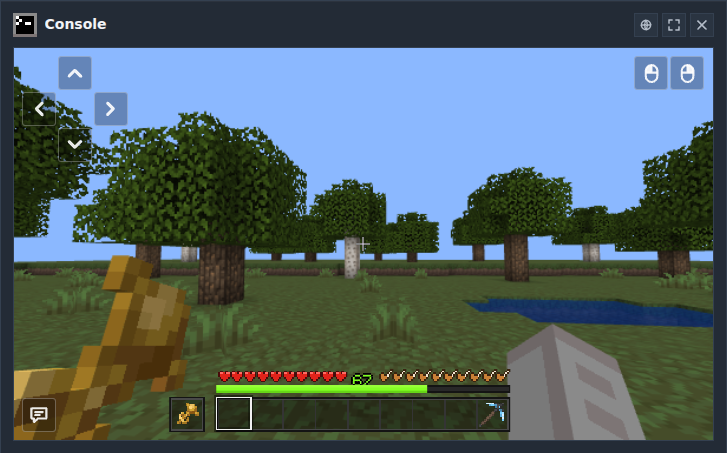
Open Point of View and select the account. Use it to inspect the account’s view and orientation. This is particularly useful when checking whether an account faces the right chest or spawner. The view depends on world data received by the connected account. Head movement, menus, dialogs, players, and entities update live.
Point of View is included with every plan, including the free plan: watch each account live, chat from its view, click inventory items, select a hotbar item, and interact with open menus and dialogs. Click an item to pick it up, then click a slot to place it. The head arrows, the mouse buttons and the World View globe unlock on Tier 2 with 10 or more account slots.
Each account box has three buttons: the globe opens World View, the arrows switch to real full screen with a Minecraft style HUD scaled like the game (press Escape to leave), and the cross hides that account from the grid.
On Tier 2 you can also record what you do in Point of View and replay it in any macro, see Macro Recording.
Check the troubleshooting guide or return to all guides.