
Run your own Discord bot
Host your own Discord bot for account controls, chat mirroring, channel alerts, and private DMs.
Create the application
Open Discord Alerts → Discord Bot. Discord Bot hosting unlocks on Tier 3 with 20 or more account slots; webhook alerts stay available on every plan. This bot is yours: it runs in your Discord server, under your token.
Create an application
Go to discord.com/developers/applications and create a New Application.
Copy the bot token
Under the Bot tab, click Reset Token and copy the token.
Enable member search
Still under Bot, enable Server Members Intent in Privileged Gateway Intents. This allows the member search. Message Content Intent is not needed for these features.
Invite it
Under OAuth2 → URL Generator, select the bot and applications.commands scopes, then open the generated link and invite the bot to your server.
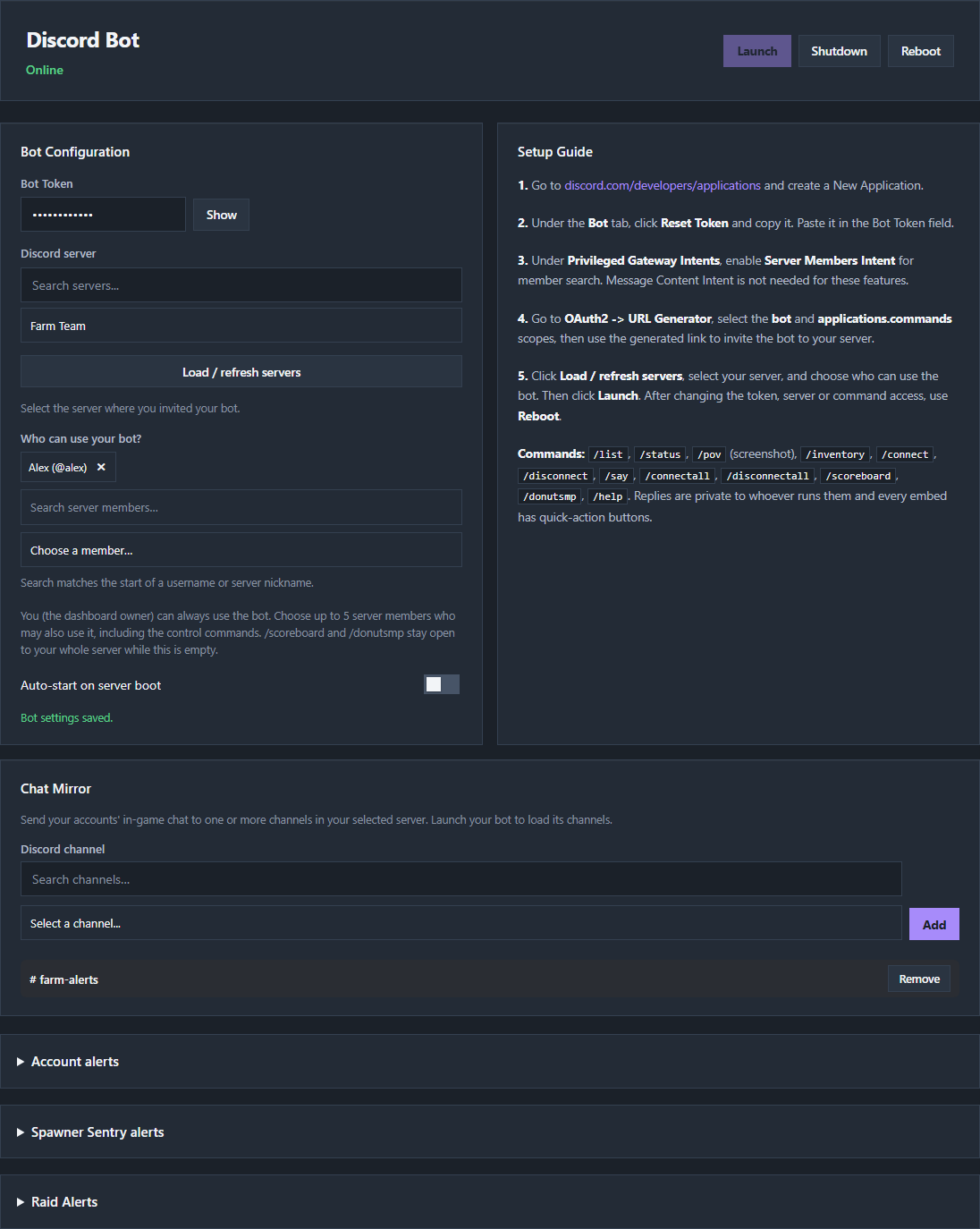
Fill in the panel and launch
Paste the token
Put the token in Bot Token.
Select your server
Click Load / refresh servers, search by name, and select the server where you invited the bot. This works before launch. If the list is empty, invite the bot and refresh.
Decide who may use it
Under Who can use your bot?, search by the start of a username or server nickname and choose up to five members. You, the dashboard owner, can always use the control commands. While the list is empty,
/scoreboardand/donutsmpstay open to your whole server. DM recipients are configured separately and do not gain command access.Launch
Click Launch and watch the status change from Offline. Shutdown and Reboot control it afterwards, and Auto-start on server boot brings it back by itself.
Set up channel alerts and DMs
Open the expandable Account alerts, Spawner Sentry alerts, or Raid Alerts section on this page to edit the same settings available on their original pages. For private alerts, choose Discord Bot, enable Send alerts to Discord DMs, choose Channel and DMs or DMs only, then select recipients for each alert. Spawner Sentry offers separate choices for detection, failure, and completion. No recipients means no DMs for that alert.
The same hosted bot can deliver general account alerts, Raid Alerts, and Spawner Sentry alerts. Each feature has a Discord Webhook | Discord Bot selector. Choose Discord Bot and select a channel from your configured server; you do not need a webhook URL for that destination.
| Permission | Why alerts need it |
|---|---|
| View Channel | Lets the bot see the destination channel. |
| Send Messages | Lets the bot post alerts. |
| Embed Links | Lets the bot send the formatted alert embeds. |
| Attach Files | Needed for Sentry completion inventory screenshots and general alert inventory images or log attachments. |
| Mention Everyone | Needed if you want enabled @everyone alerts to notify everyone in the channel. |
Check channel-specific permission overrides as well as the bot’s server role. Keep the bot online, and choose the destination separately in every feature you use. Read Send alerts to Discord for event settings, testing, and channel troubleshooting.
What the bot can do
Command replies are private to whoever ran the command. Automatic alerts go to your selected channel, DM recipients, or both. People with channel access can read channel alerts; only each recipient sees their own DM.
| Command | What it returns |
|---|---|
/list, /status | Your accounts and their current state. |
/pov | A screenshot of what an account is looking at. |
/inventory | An account’s inventory. |
/connect, /disconnect | Start or stop one account. |
/connectall, /disconnectall | Start or stop every account. |
/say | Send a chat message from an account. |
/scoreboard, /donutsmp | Server scoreboard information. |
/help | The command list. |
Mirror chat into channels
Chat Mirror sends your accounts’ in-game chat to one or more channels in your selected server. Launch the bot, search the channel names, choose a channel, and click Add. The list shows channel names; use Remove to stop mirroring to one. Chat Mirror does not send DMs.
Use Reboot after changing the token, selected server, or command whitelist. Alert recipients and channel settings apply after saving without a bot reboot. If the panel is locked, its notice explains whether your plan or the service-wide hosting switch is responsible.
Check the troubleshooting guide or return to all guides.