
Fix repeated kicks
Read the kick reason, then use the compatibility switches, kick rules, and per-account overrides.
Start from the reason
Open Chat → Console and the account’s error details, and read the kick message the server sent. The message decides which setting is worth changing. Change one setting at a time and reconnect one account, otherwise you cannot tell which change helped.
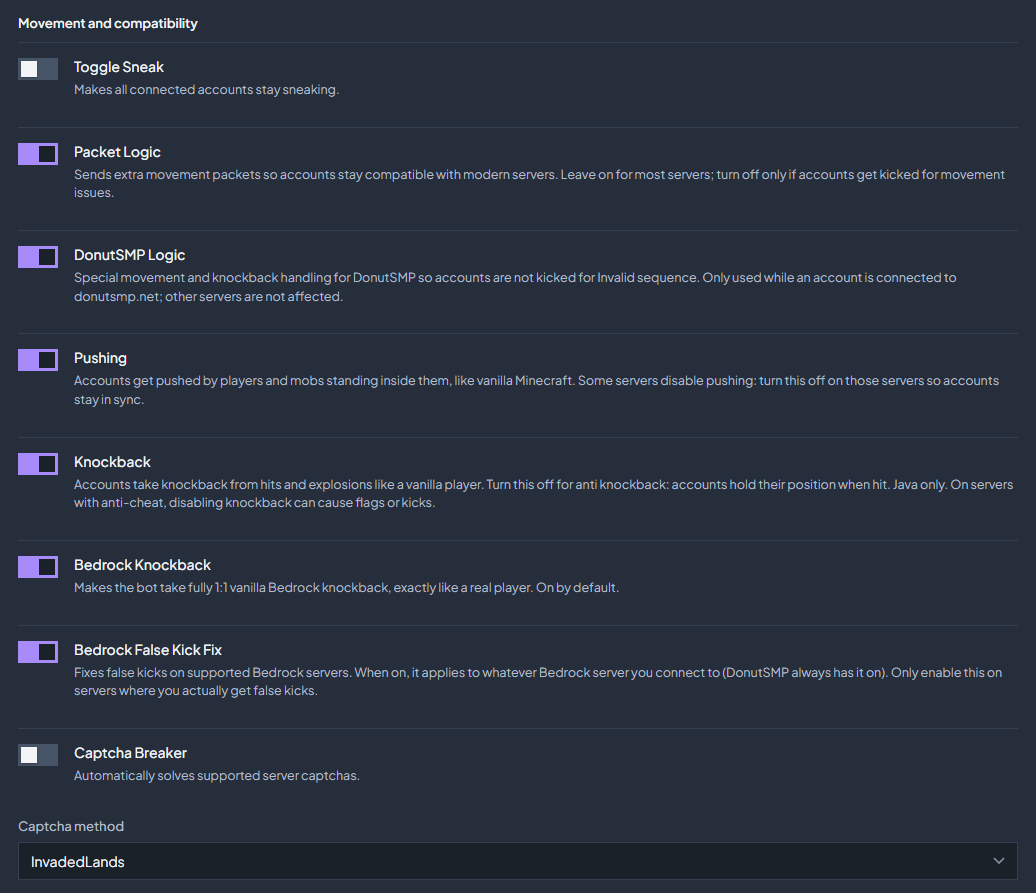
Movement and compatibility switches
These live in Settings → Behavior → Movement and compatibility and apply to every account on its next connect.
| Setting | When to change it |
|---|---|
| Packet Logic | Sends extra movement packets so accounts stay compatible with modern servers. Leave it on for most servers. Turn it off only if accounts are kicked for movement issues. |
| DonutSMP Logic | Special movement and knockback handling so accounts are not kicked for Invalid sequence. It is only used while an account is connected to donutsmp.net, so it does not affect other servers. |
| Pushing | Accounts are pushed by players and mobs standing inside them, like vanilla. Some servers disable pushing: turn this off on those servers so accounts stay in sync. |
| Knockback | Accounts take knockback from hits and explosions like a vanilla player (Java). Turning it off holds their position when hit, and on a server with an anti-cheat that can cause flags or kicks. |
| Bedrock Knockback | Vanilla Bedrock knockback, on by default. Same trade-off as above for Bedrock accounts. |
| Bedrock False Kick Fix | Fixes false kicks on supported Bedrock servers, and applies to whatever Bedrock server you connect to. Enable it only where you actually get false kicks. |
Servers that ask for a captcha
Captcha Breaker, in the same panel, solves supported server captchas automatically, using the Captcha method you select. If your server’s captcha is not one of the supported kinds, leave it off; a wrong method does not help and adds another thing to rule out.
React to one specific kick message
Open Settings → Auto Reconnect and find Kick rules. A rule matches when the kick message contains your text, ignoring capitals, and the first matching rule wins.
Add a rule
Click Add Rule and type a distinctive part of the kick message into Kick message contains.... Use a phrase that only appears in that kick, not a single common word.
Choose the action
Pick Wait then reconnect and a number of minutes (up to 1440) for a temporary block such as a restart or a cooldown. Pick Do not reconnect when coming back would be pointless or unwelcome, such as a ban message.
Keep the list short
Rules are checked in order, so put the specific ones above the general ones and remove rules you no longer need with Remove.
Test it
Reconnect one account and watch Chat → Console after the next kick to confirm the rule matched and the wait you expected was applied.
Stop every account when one is banned
Disconnect all on ban, under Settings → Behavior → Chat and accounts, is off by default. Turn it on and, when one account is kicked with a message that contains one of the Ban keywords, every account you have on that same server is disconnected, the kicked one included, and each stays offline until you press Connect, the same way Spawner Sentry and macro disconnects leave accounts down.
Turn it on
Enable Disconnect all on ban. The keyword field appears below it.
Set the keywords
Comma separated words or phrases, matched anywhere in the kick message and ignoring capitals. The defaults are
banned,ban id,suspended,blacklisted, andblocked; emptying the field restores them. Keep the list specific, because a short word such asbanalso matches unrelated words.Know what counts as the same server
Accounts match by the server address they connect to, whether it comes from Settings → Connection or from an account override, on both editions. Accounts on other servers are left alone.
Check the console
The kicked account’s console shows which keyword matched and whether the other accounts were stopped. Each stopped account shows the reason on the Overview.
When only some accounts are kicked
Open the account in Overview and use Specific Settings. Version (optional override) runs that one account on a different Minecraft version, and Server IP (optional override) sends it to a different address; both fall back to Settings when left on the global default. Node moves the account to another region and is only changeable while it is disconnected. To run the same account on a second server as well, see Use one account on two servers.
If one proxy’s accounts are the only ones being kicked, the proxy is the more likely cause. Move one of those accounts to a different proxy and compare, as described in Add your own proxies.
Check the troubleshooting guide or return to all guides.