
Set up Spawner Sentry on DonutSMP
Use Timer Method and Block Break Detection with a supported position beside your spawners, and add Player Detection as an early warning.
Use a supported position
Use a Java or Bedrock account with access to Spawner Sentry. Give it a Silk Touch pickaxe and leave inventory space for the spawners.
Stand on a solid block
Put the account on a block beside the spawner. Do not stand the account on top of the spawner: it needs support that remains in place while the spawner is mined.
Look directly at the spawner
Aim at the spawner from a position within mining reach. Keep the account on its supporting block. Use the arrangement below as your starting point.
Check the detected spawners
Open Spawner Sentry and confirm that nearby spawners appear. Detection alone does not mean every spawner is reachable from the account’s position. When Spawner Auto Sell runs on the same account, each pile it has opened also shows how many spawners it holds, read from the menu title, next to its coordinates.
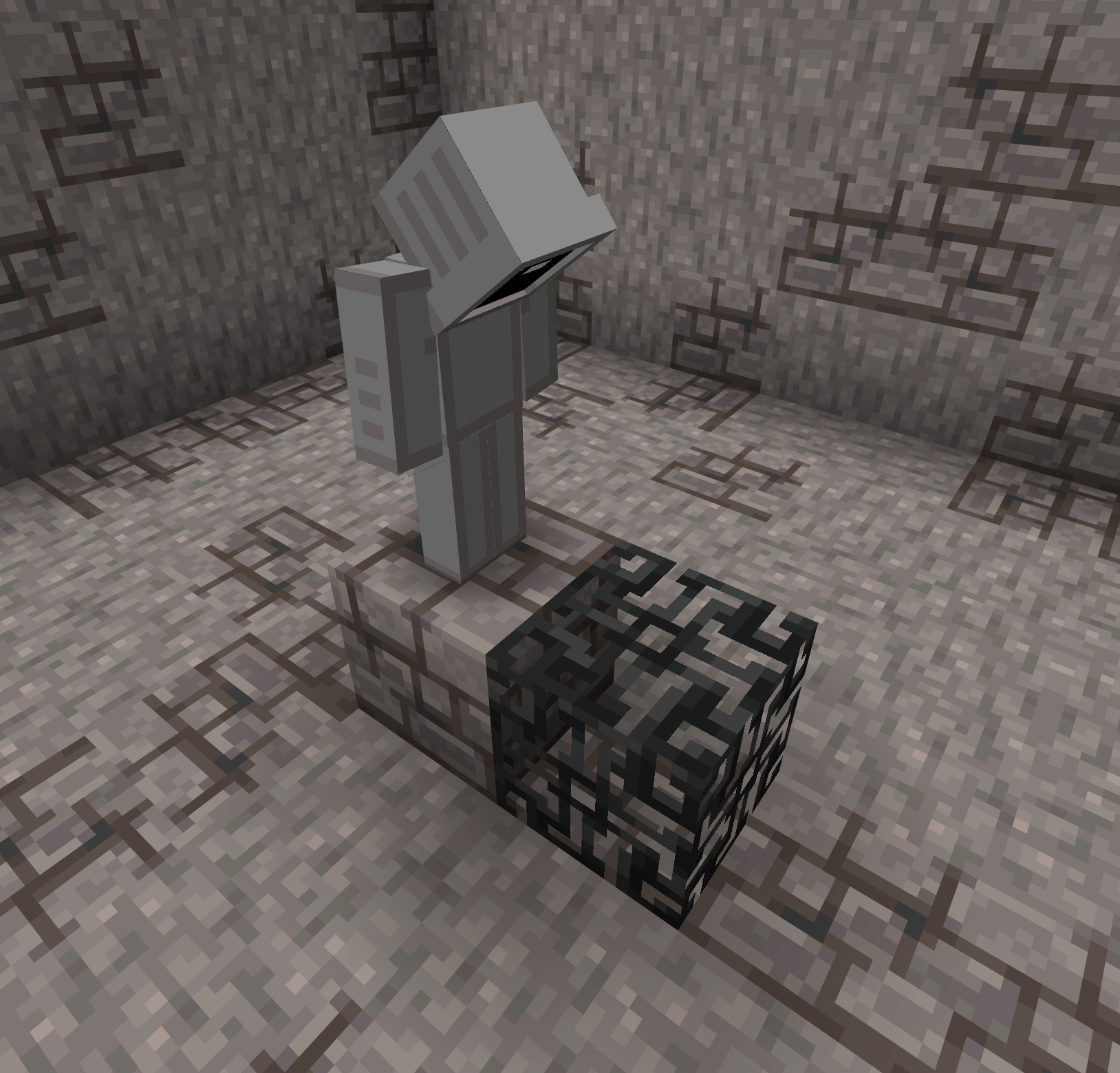
Multiple piles of spawners
Spawner Sentry supports multiple piles of spawners. The video below shows it working perfectly with multiple piles in the example setup. Keep every pile within mining reach and allow enough mining time and inventory space for all of the spawners.
Use Timer Method and Block Break Detection
Enable Timer Method
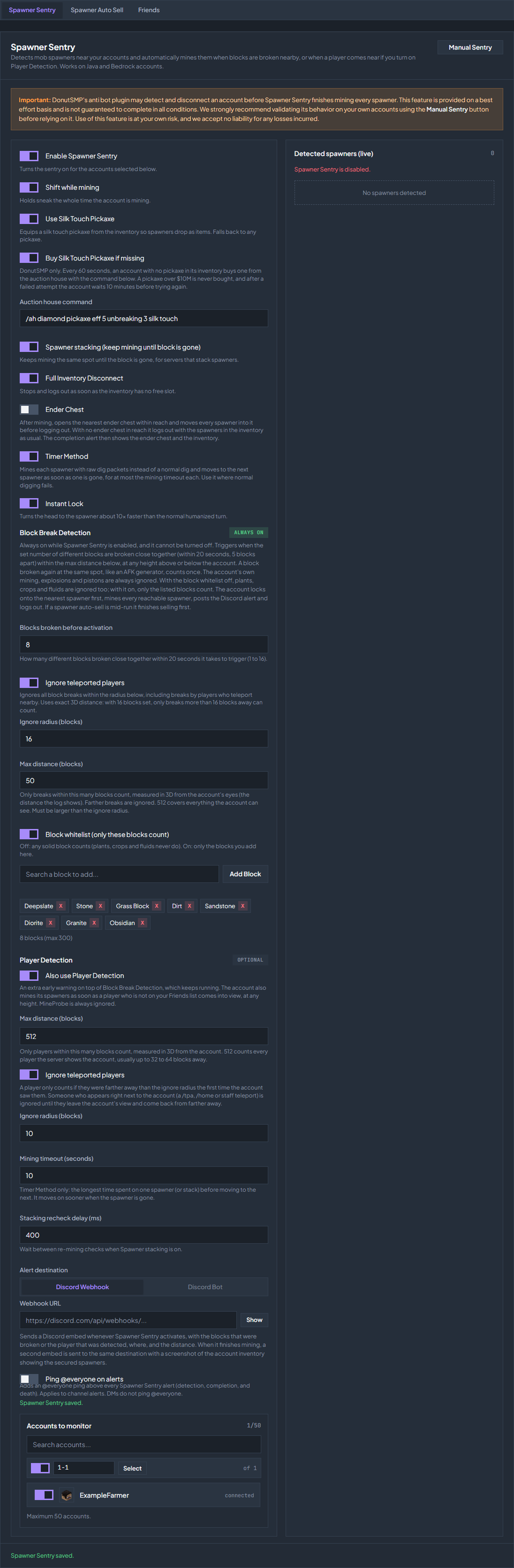
In Spawner Sentry, turn on Timer Method. Mining timeout (seconds) is how long the account keeps mining a spawner after its last break that gave spawners, so each pile is mined until it is empty before the account moves to the next one. The default is 10 seconds. DonutSMP accepts one spawner break about every 3 seconds, so there the account waits out that cooldown between breaks, and the wait does not count toward the timeout.
Know what triggers it
Spawner Sentry activates on Block Break Detection. It is always on while Spawner Sentry is enabled, and it cannot be turned off. Only breaks within Max distance (blocks) count: 50 blocks by default, measured in 3D from the account, the same distance its log shows. Raise it, up to 512 for everything the account can see, if it should also respond to blocks broken at surface level above a deep base. You can add Player Detection on top of it, see the next section.
Set the activation count
Set Blocks broken before activation. The default is 8. The required breaks must occur close together, within 20 seconds and 5 blocks of one another, and each must be a different block: a block broken again at the same spot, like an AFK generator, counts once. A higher count needs more breaks before triggering.
Check the block whitelist
Block whitelist is on by default with deepslate, stone, grass block, dirt, sandstone, diorite, granite, and obsidian, so only those blocks count. Add the blocks your base is dug into, or turn the whitelist off to count any solid block.
Keep a pickaxe on the account
Buy Silk Touch Pickaxe if missing is on by default. On DonutSMP, every 60 seconds an account with no pickaxe in its inventory runs the command in the box under the switch,
/ah diamond pickaxe eff 5 unbreaking 3 silk touchunless you change it, and buys a listing from the auction house. It confirms the purchase on its own, whether or not the account has Auction Quick Buy turned on. A pickaxe over $10M is never bought, and after a failed attempt the account waits 10 minutes before trying again. The account needs enough money for the pickaxe. A site notification tells you when it starts buying, what it paid, and why a purchase failed.Optional: store the spawners in an ender chest
Turn on Ender Chest (off by default) to have the account put every spawner into an ender chest before it logs out, so a raider who finds the account offline cannot get them. Place the ender chest within reach of where the account stands, in plain view: after mining, the account looks at the nearest ender chest, opens it, moves all spawners in and then logs out. If no ender chest is in reach, or something blocks the view of it, the account skips this step and logs out with the spawners in its inventory as usual. DonutSMP ender chests have six rows; leave enough free slots for your spawners.
Review the mining options
Keep Shift while mining, Use Silk Touch Pickaxe, and Spawner stacking enabled for this setup. Full Inventory Disconnect stops and logs out when there is no free inventory slot.
Select the accounts
Choose the intended accounts under Accounts to monitor. Turn on Enable Spawner Sentry when they are positioned and ready. Wait for the save confirmation.
Add Player Detection as an early warning
Player Detection is optional and off by default. Turn on Also use Player Detection and the account also mines its spawners as soon as a player who is not on your Friends list comes into view, at any height. It is an extra early warning on top of Block Break Detection, which keeps running. It cannot run on its own: if Block Break Detection has nothing it could count, such as a block whitelist with no blocks in it, the dashboard does not save Player Detection.
| Setting | Default | What it does |
|---|---|---|
| Also use Player Detection | Off | Mines the spawners when a player who is not on your Friends list comes into view. Like Block Break Detection, it only acts while spawners are in range of the account. |
| Max distance (blocks) | 512 | Only players within this many blocks count, measured in 3D from the account. 512 counts every player the server shows the account, which is usually up to 32 to 64 blocks away. Lower it to ignore players who pass at a distance. |
| Ignore teleported players | On | A player only counts if they were farther away than the ignore radius the first time the account saw them. Someone who appears right next to the account, through /tpa, /home, or a staff teleport, is ignored until they leave the account’s view and come back from farther away. |
| Ignore radius (blocks) | 10 | The distance used by Ignore teleported players, from 1 to 64 blocks. |
Use it on a base where nobody else should ever come close: it can react before the first block breaks. Leave it off where other players pass by often, near spawn or a busy path, because every unknown player in view starts a mining run. Servers do not always show players. Some hide players who are far away or behind walls, and a raider digging in from above may never appear. That is why Block Break Detection always stays on.
Add friends and your own accounts
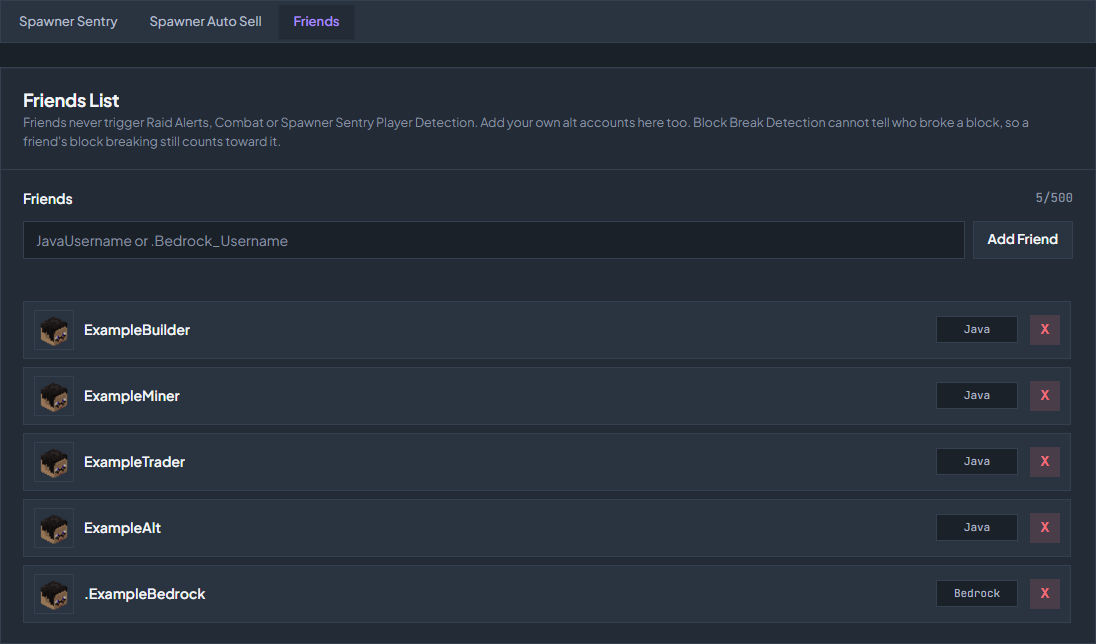
Open the Friends tab at the top of Spawner Sentry, next to Spawner Auto Sell. Type the exact name the server shows, including the prefix of a Bedrock player if the server uses one, and click Add Friend. The list holds up to 500 names.
Friends never trigger Player Detection. It is the same list Raid Alerts and Combat use, so a friend is also left out of Raid Alerts and never attacked by Combat. Add your own other accounts too, so they never count when they stand near the base.
Block Break Detection cannot tell who broke a block, so a friend’s block breaking still counts toward it. Keep friends from mining near your spawners, or raise the activation count.
Understand what block detection can see
Block Break Detection responds to block changes in the chunks the server sends to your account, at any height within Max distance (blocks). It does not require a player entity to be visible, but it cannot detect a player who is only standing still. It is not a scan of the entire server. On a Bedrock account it sees block changes in the area loaded around the account, and other players’ breaks within about 64 blocks.
With the block whitelist off, plants, crops, and fluids do not count. With it on, only the listed blocks count. The account’s own mining, explosions, and pistons are ignored. Block breaks do not identify the player who caused them, so the Friends list does not exempt a friend’s block breaking.
Add alerts and test the real setup
On Tier 3, choose Discord Bot, then Channel + DMs or DMs Only, and use the Recipients button beside each alert to choose recipients separately for detection, failure, and completion. These same destination controls are also available under Discord Bot, so a saved change applies in both places.
Under Alert destination, choose Discord Webhook and enter the Webhook URL, or choose Discord Bot and select a channel. Bot alerts require Tier 3 (20+ account slots), a running bot, and the selected server in Discord Bot settings. Sentry sends activation alerts, death-while-mining alerts, and completion alerts with an inventory image after a successful run. Give the bot Attach Files permission for that image. Enable Ping @everyone on alerts only if you want that notification in the destination channel.
Use Manual Sentry, select your test account, and click Start Manual Sentry. This performs real mining and can log out the account. Confirm that the account can reach and collect the spawners, and that the mining timeout is sufficient for the stack.
The activation alert lists each kind of block that was broken with a count, such as 2x deepslate, the position of the first break, which the Distance line is measured from too, and the account position. It does not identify the player who broke the blocks.
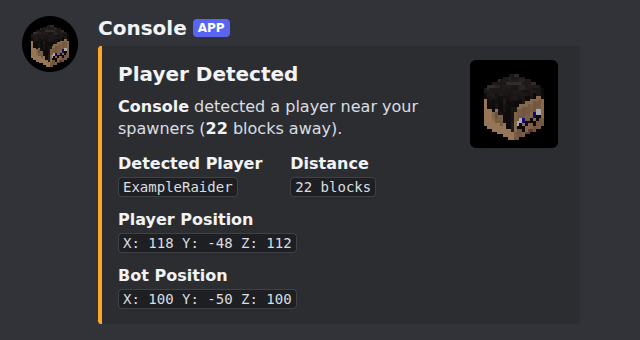
When Player Detection starts the run, the activation alert is titled Player Detected instead. It shows the player’s name and head, how far away they were, their position, and the account position.
With Ender Chest on, the completion alert shows the open ender chest above the account’s inventory, just like the menu looks in game, and an Ender Chest line with how many spawners were stored.
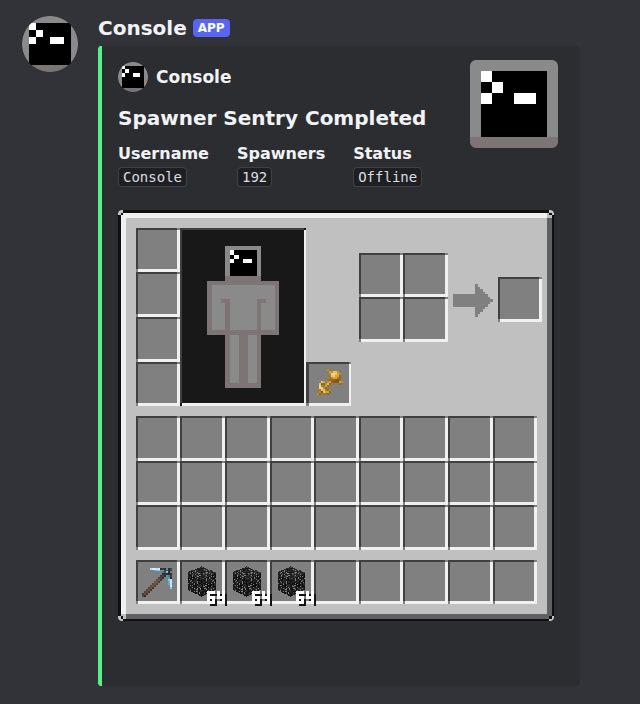
After a successful run, check the completion message and inventory before reconnecting the account. This example shows 192 collected spawners and an Offline status.
Which detection started the run?
Three places tell you. The activation alert is titled Block Breaking Detected or Player Detected. While the account mines, the status above the detected spawners reads Trigger: blocks broken at a position, or Trigger: player and a name. The account’s console under Chat → Console has the full line, such as 3 blocks broken in one spot at ... or player ExampleRaider detected 23.4 blocks away.
If Player Detection starts on someone you trust, add them to the Friends tab. If it starts on players passing far away, lower its Max distance (blocks). If it ignored someone who appeared right next to the account, that was Ignore teleported players, and the console says so.
Check the troubleshooting guide or return to all guides.