
Set up Decodo shared proxies
Buy cheap shared Decodo datacenter proxies for many Java or Bedrock accounts and import them from a .txt file.
When to use shared proxies
Decodo’s shared datacenter proxies are sold by the hundred, which makes them the cheapest way to give a lot of accounts their own IPs, for example for AFK rewards. They work for Java and Bedrock accounts.
| Shared (Pay per IP) | Dedicated (Pay per Dedicated IP) | |
|---|---|---|
| Used by | You and other Decodo customers | Only you |
| Best for | Many accounts for AFK rewards | Your own main accounts |
| Accounts per proxy | 2 to 3 | 1 |
Buy the plan
Create a Decodo account
Sign up at Decodo. They accept PayPal and crypto.
Open datacenter pricing
Go to Datacenter pricing and choose Pay per IP.
Pick the IPs and traffic
Start with 100 IPs and 1000 GB of traffic. Bedrock accounts use a lot of bandwidth; with hundreds of them you may reach the limit and need another plan.
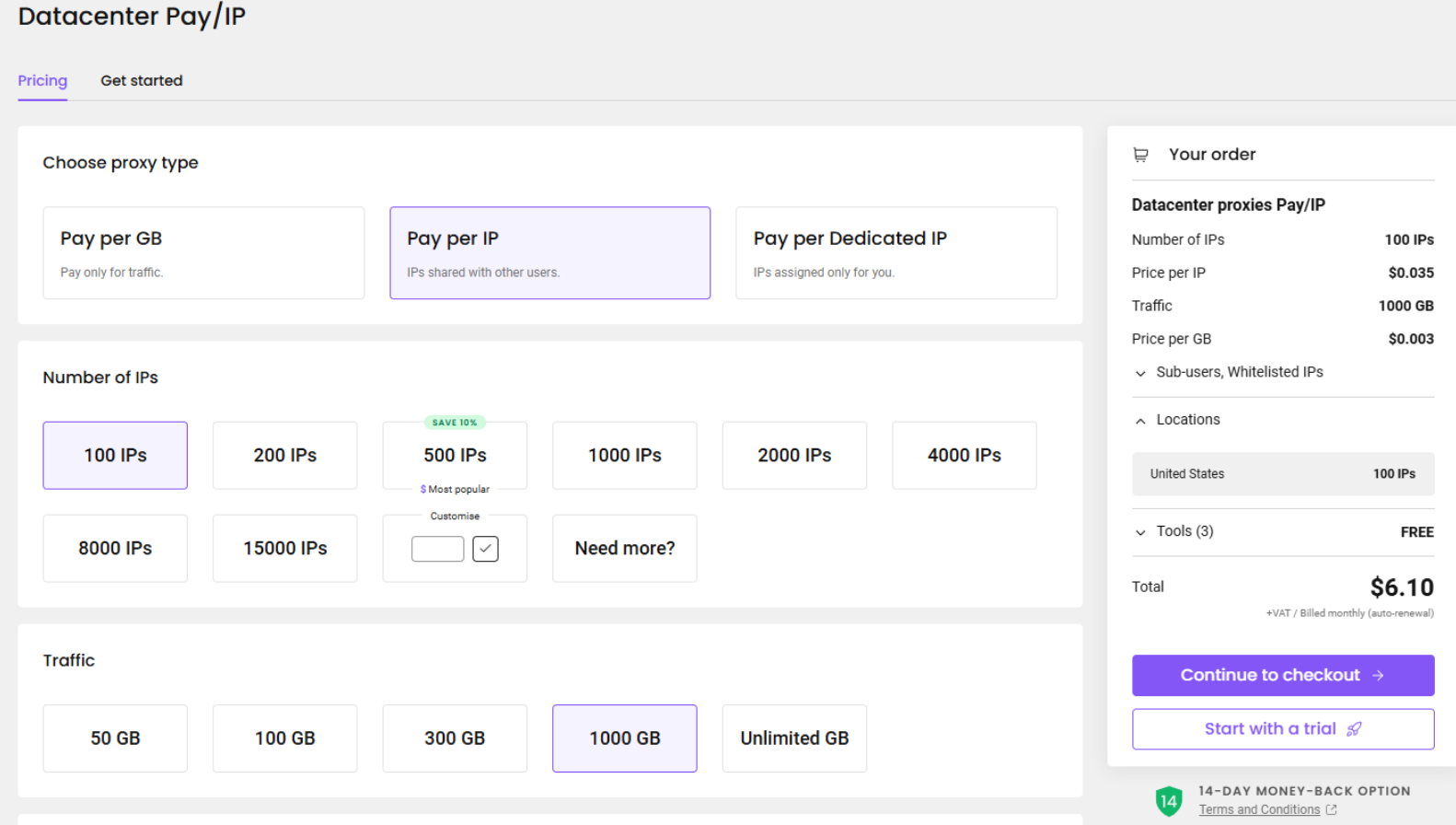
Pay per IP with 100 IPs and 1000 GB of traffic. Click to enlarge. Pick a location
Choose the location closest to the Minecraft server and to your accounts’ node, see Choose a location.
Add an IP list refresh (optional)
An On-demand IP list refresh lets you swap your list for new IPs later. It raises the price, but it is useful to have.
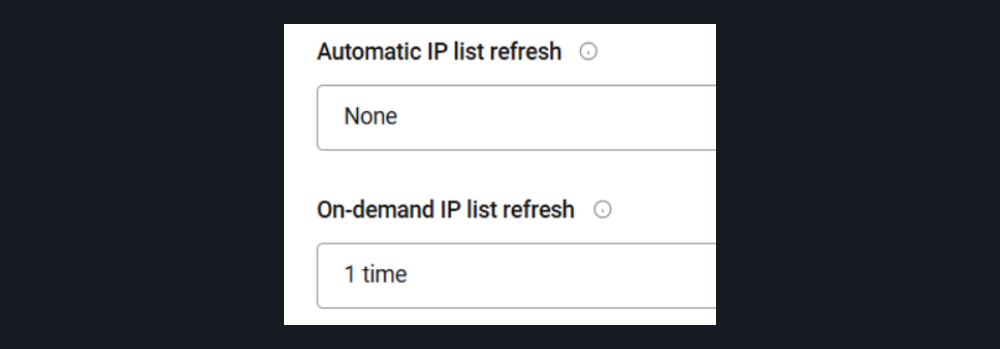
One on-demand IP list refresh added to the plan. Click to enlarge. Pay
Leave the thread limit on Standard and complete the payment.
Import the proxies
Download the list
Open Proxy setup. You can ignore most of this page: use the download icon at the bottom right and choose .txt.
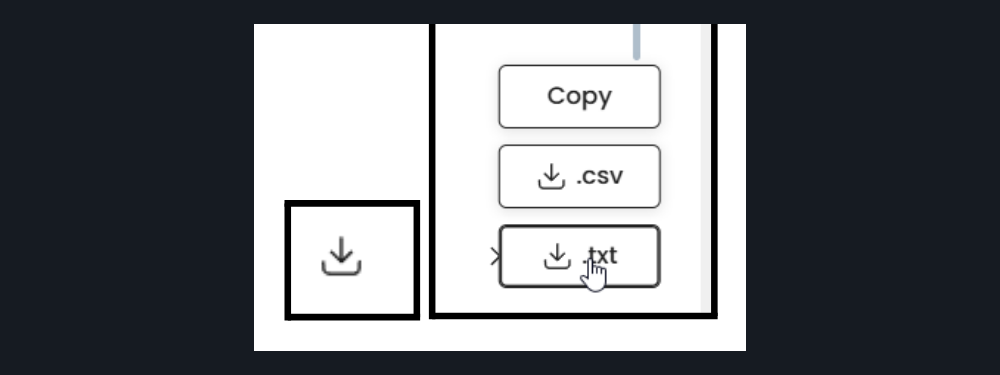
The download icon and the .txt option on Decodo’s proxy setup page. Click to enlarge. Import it into Console Client
Open Proxies and click Import from .txt file under Your own proxies. Every proxy in the file is added at once.
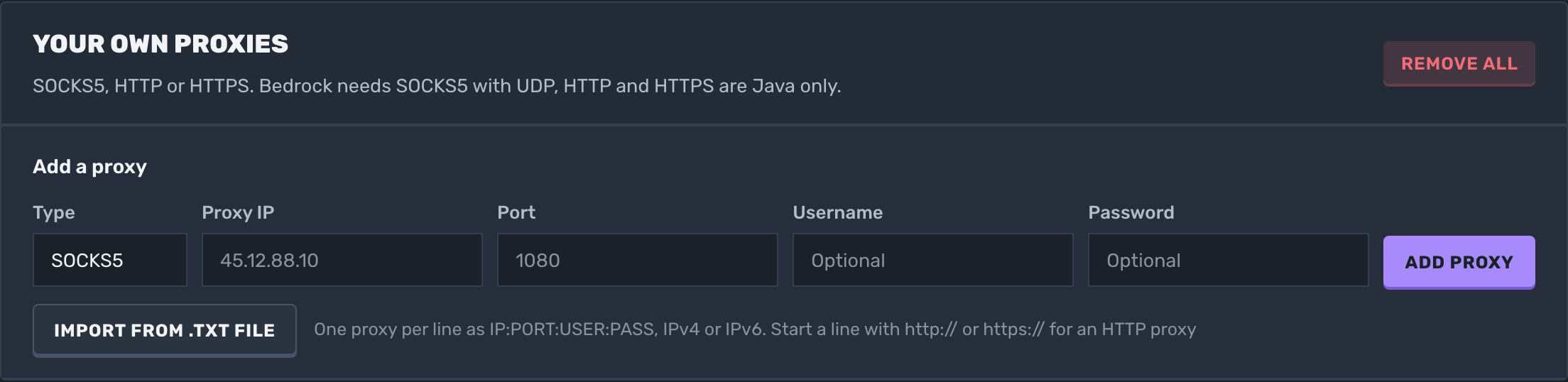
Import from .txt file under Your own proxies. Click to enlarge. Spread the accounts
Keep it to 2 or 3 accounts per proxy. When you import accounts, the Auto Fill options can spread them across your proxies, see Import multiple accounts.
Check the troubleshooting guide or return to all guides.