
Add a Java account
Sign in with a Microsoft auth code and add a Java Edition account to your dashboard.
Have your server and proxy ready
Set your Java server under Settings → Connection. Have a Java-compatible proxy available in the account picker. For a normal Microsoft sign-in, use an account that owns Minecraft Java Edition.
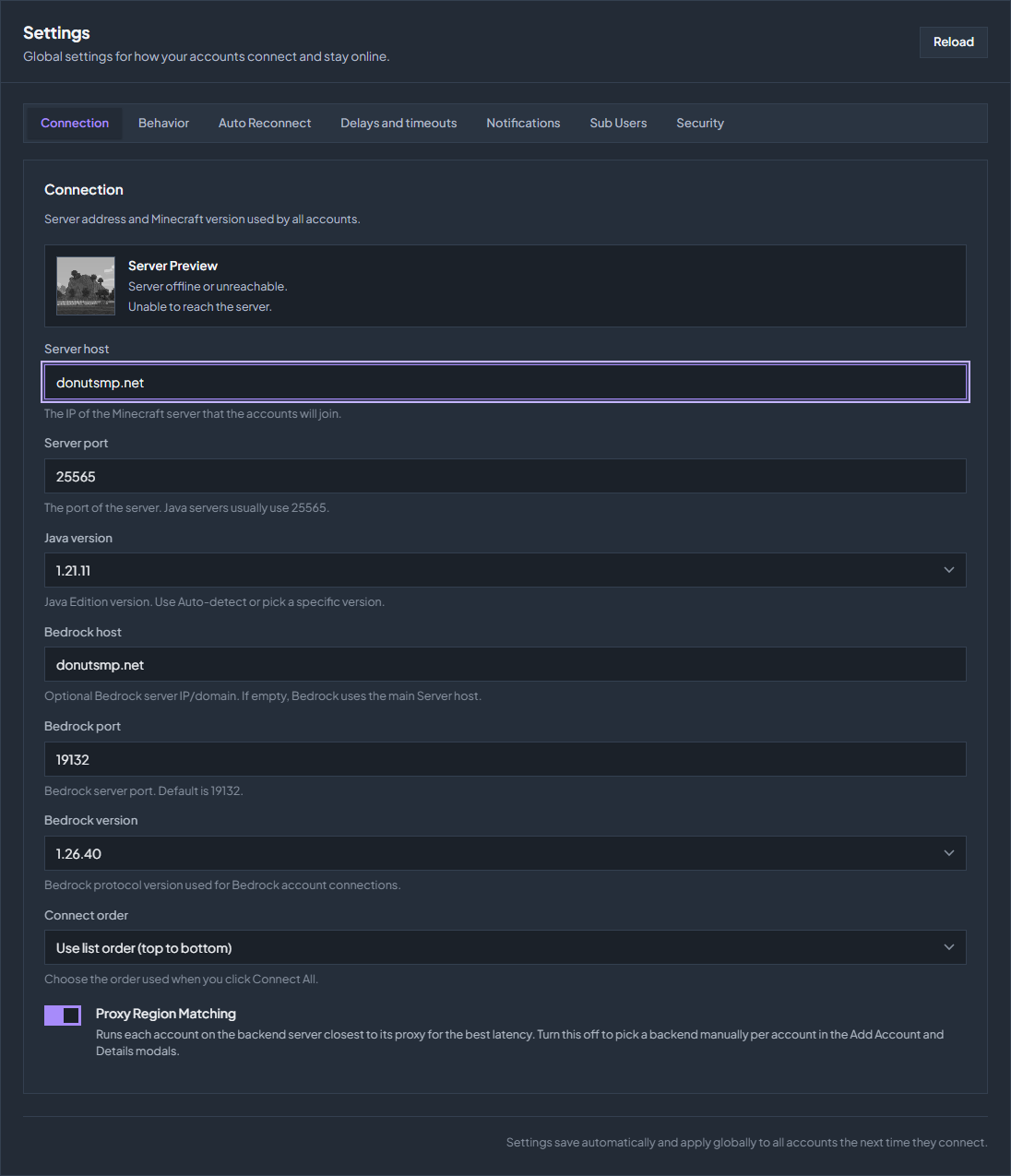
Add the account
Open the Java form
In Overview, click Add Account, then JAVA.
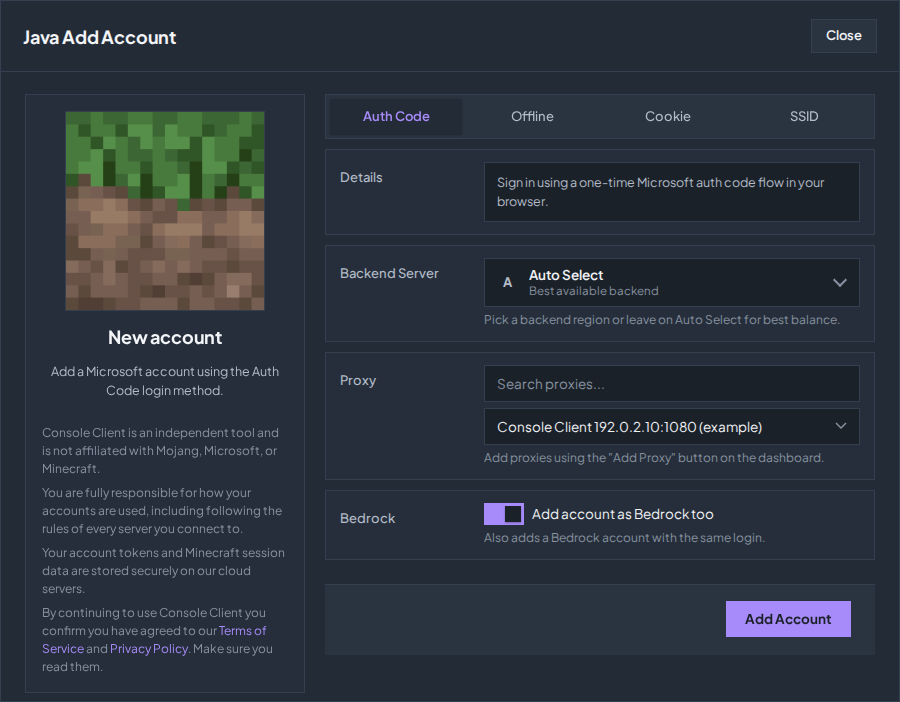
Choose Auth Code
Leave Login Method on Auth Code. You choose your Microsoft account during the sign-in prompt; this form does not ask for your email.
Select your proxy
Choose a proxy from the Proxy list. If a node region picker is available, leave Auto Select selected unless you have a reason to choose a region.
Check the Bedrock option
Also Add as Bedrock is on by default. Turn it off if you only want a Java account. If you leave it on, check your Bedrock server settings as well.
Finish authentication
Click Add Account, then GENERATE CODE in the Microsoft Login prompt. Click Open Microsoft Login; the displayed code is entered for you. Sign in with the account you intended to add and complete the approval. Return to Overview and use Connect when ready.
Check the result
Return to Overview and check the Minecraft username and connection status. Open Chat → Chat for server messages or Chat → Console if the connection fails. An authentication code may expire; use the current prompt instead of reusing an old code.
Check the troubleshooting guide or return to all guides.