
Manage accounts and shared access
Use bulk account actions, change proxies or regions, and grant limited dashboard access.
Work with a group of accounts
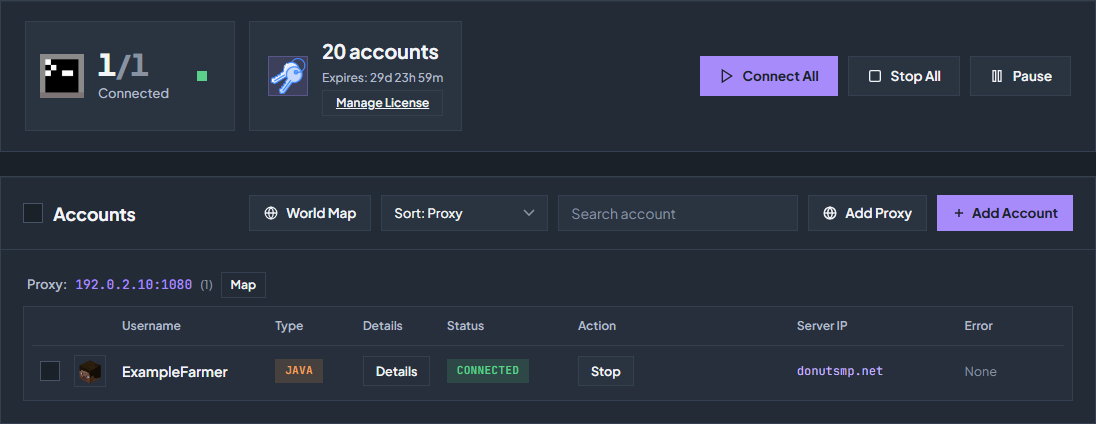
In Overview, use search and sorting to find the accounts you need. Tick their checkboxes to expose the bulk actions. Confirm the selection before connecting, disconnecting, changing proxies, or removing accounts.
Change a proxy or node region
Disconnect accounts before changing their proxy or transferring them to another node. Use the account settings for a single account or the matching bulk action for the selected group. Read any per-account errors before reconnecting.
A proxy changes the outbound connection used to reach Minecraft. A node region changes where Console Client runs the account. They are separate choices; automatic region selection is available when the dashboard’s matching settings permit it.
The same window has a Clone button, which adds a second entry of the account with its own server override. See Use one account on two servers.
Give someone limited access
Open Sub Users
Go to Settings → Sub Users. The panel shows how many sub-user slots your plan includes.
Find the person
Search their username or paste their Discord ID. Select the intended person and add them.
Set permissions
Grant only the dashboard controls they need. Review the permissions before asking them to operate accounts. Proxy purchasing remains an owner action.
Choose their Minecraft accounts
Under Minecraft accounts, keep All accounts or pick Only selected accounts and tick the accounts they may use. Accounts you leave unticked are invisible to them: no status, chat, console, alerts or macros, and no way to control them. Accounts you add later stay hidden until you tick them. In this mode the settings that change every account (Connection, Behavior, Auto reconnect, Delays, Discord webhook alerts, the hosted Discord bot and Friends) are turned off for that person.
Remove access when finished
Return to Sub Users to change permissions or remove their access.
Remove an account
Disconnect the account first, then use its remove action or the bulk remove control. Read the confirmation and check the selected accounts. Stopping an account and removing its saved entry are different actions.
Check the troubleshooting guide or return to all guides.