
Send alerts to Discord
Choose a Discord webhook or your Tier 3 hosted bot for account events, Spawner Sentry, and Raid Alerts.
Choose a webhook, bot channel, or DMs
Open Discord Alerts. The Discord Webhook | Discord Bot switch is at the top of the alert panel. A webhook uses a channel webhook URL. Your hosted Discord Bot can send to a named channel, direct messages, or both. Bot delivery requires Tier 3 (20+ account slots).
General account alerts, Raid Alerts, and Spawner Sentry each keep their own destination. You can also edit these same settings in the expandable alert sections on the Discord Bot page. Changes apply in both places; there is no second copy to maintain. Existing webhook settings continue working, and DMs start switched off.
Prepare your bot for alerts
Complete the Discord Bot setup, invite it to your Discord server, select that server from the server dropdown, and launch it. The bot must be online before you select a channel.
In the feature’s Alert destination control, choose Discord Bot and a channel. The picker lists text and announcement channels in the configured server where the bot can view the channel, send messages, and embed links. Give it Attach Files permission too if you use inventory screenshots or log attachments. A channel in another server will not appear.
Connect a webhook
Have a webhook URL for the Discord channel where you want alerts. You need permission to manage webhooks in that Discord server. Keep the URL private; it allows messages to be sent to the channel.
Open Discord Alerts
Select the Discord Alerts tab. The destination controls are directly below the master switch.
Set the webhook URL
Choose Discord Webhook and enter the Webhook URL. Enable the Discord alerts master switch and the events you want.
Save and test
Wait for the save confirmation, then click Send test. Check that the message arrives in the intended channel.
Choose events and DM recipients
Enable the master switch and the events you want: joins, disconnects, deaths, kicks, errors, macro success or failure, low health, low hunger, mentions, SMP maintenance, and DonutSMP reboot notices. Expand an event to change its message. Appearance & pings holds the embed appearance and general ping settings.
Turn on DMs
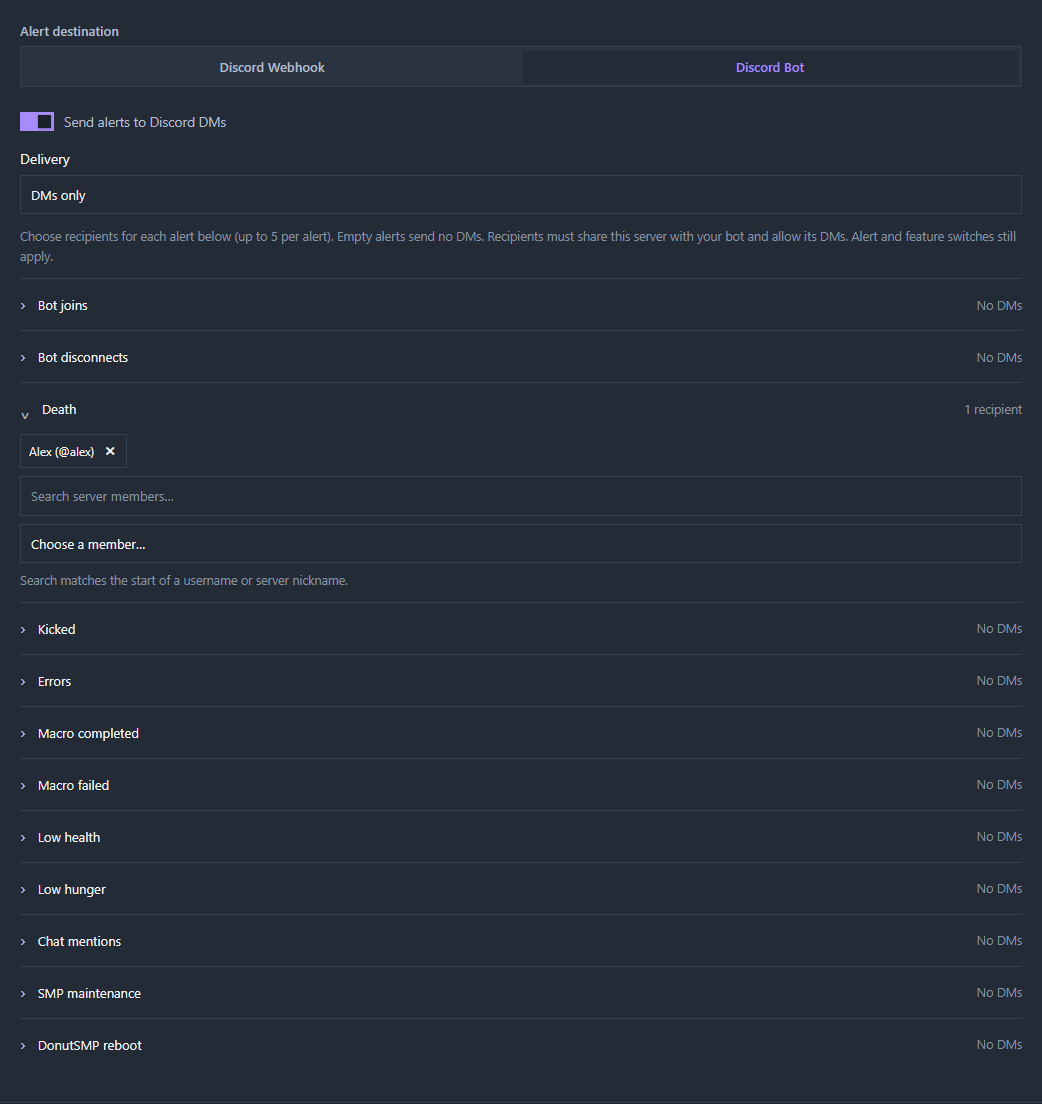
Choose Discord Bot, then enable Send alerts to Discord DMs. Choose Channel and DMs to keep channel alerts, or DMs only to send without a channel.
Choose alerts and people
Expand each alert you want sent privately. Search for the start of a username or server nickname, then choose a member from the dropdown. Select up to five recipients per alert. Leave an alert empty to send no DMs for it. Remove a person with the cross beside their name.
Check the event switches
The general master switch and individual event switches still apply. For example, adding a death DM recipient does not turn on a disabled Death event. With DMs only, alerts without recipients are not delivered.
Save and test
Wait for the save confirmation, then use Send test. It checks the selected general-alert channel and up to five distinct DM recipients across your selected alerts. It does not cause a real death, raid, or Sentry run.
DM recipients are separate from the command whitelist: receiving an alert gives no access to control your accounts. Inventory images and recent logs travel with the alert when enabled. DMs do not ping @everyone.
Use the right destination for each feature
| Feature | Where to choose the destination |
|---|---|
| General account events | Discord Alerts tab, or Discord Bot → Account alerts. |
| Raid Alerts | Discord Alerts → Raid Alerts → Alert destination. |
| Spawner Sentry | Spawner Sentry → Alert destination, or Discord Bot → Spawner Sentry alerts. Select separate DM recipients for detection, failure, and completion. Detection covers both the Block Breaking Detected and the Player Detected alert. |
Raid Alerts can also be edited on the Discord Bot page. Each feature can use a different channel and different DM recipients. An event checkbox in general alerts does not configure the account selection or detection settings for Spawner Sentry. Chat Mirror has its own searchable channel dropdown and does not send chat to DMs.
Continue with Raid Alerts to monitor nearby players, or Spawner Sentry to configure mining protection.
If no message arrives
For DMs, confirm the intended alert has recipients, its event or feature is enabled, and your bot is online. Each recipient must still be in the selected server and allow DMs from the bot. A closed DM or blocked bot can prevent delivery even when channel alerts work. Other destinations are still attempted if one DM fails. After changing privacy settings, wait about a minute before testing again. For member-search errors, check Server Members Intent in the Discord Developer Portal.
Check that the feature and desired event are enabled, the correct accounts are selected, and the settings were saved. For a webhook destination, confirm the webhook still exists. For a bot destination, confirm your Tier 3 license is active, bot hosting is enabled, the bot is online, and the selected server matches the server it joined.
If the channel list is empty, check View Channel, Send Messages, and Embed Links permissions, including channel-specific overrides. Channel information is cached briefly; allow about 30 seconds after changing permissions, then reopen the picker. Reboot the bot after changing the configured server. Attach Files permission is also required for messages with inventory images or logs.
Stopping the Discord bot stops bot alert delivery until it is running again. It does not automatically switch back to a saved webhook. Choose Discord Webhook explicitly if you want to use that destination instead.
Check the troubleshooting guide or return to all guides.