
Keep accounts alive while AFK
Use Anti AFK, Auto Eat, and Auto Confirm GUIs so an account survives a long AFK session.
Stop the server kicking you for being idle
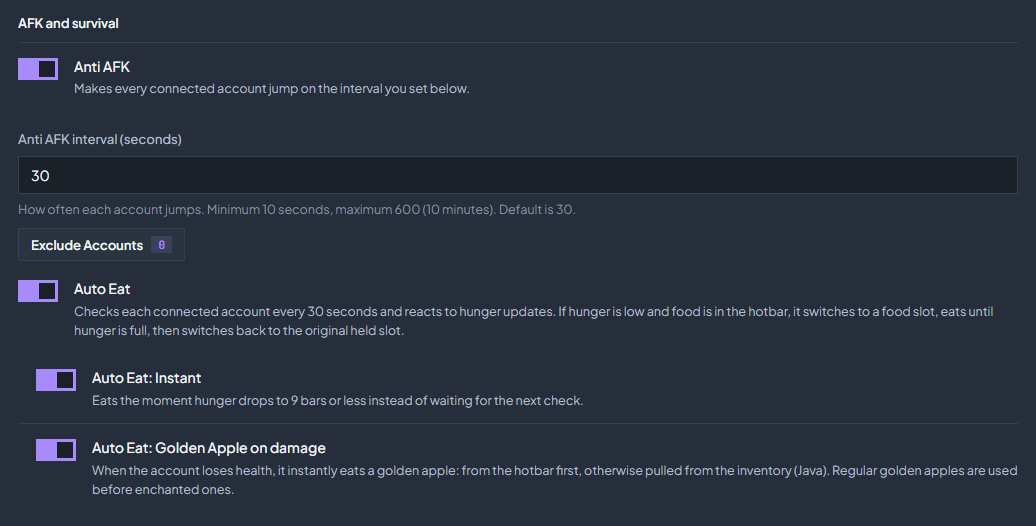
Open Settings → Behavior and find AFK and survival. Anti AFK makes every connected account jump on the interval you set.
Turn on Anti AFK
Enable Anti AFK and set Anti AFK interval (seconds). The minimum is 10 seconds, the maximum is 600, and the default is 30.
Match your server
Set an interval shorter than your server’s AFK timeout. A slower interval is less obvious than a jump every few seconds.
Exclude the accounts that must not move
Use Exclude Accounts for any account whose position matters: one standing on a pressure plate, in a fall trap, or aimed at a chest for Sell Axe. A jump can move it out of position.
Keep accounts fed
Auto Eat checks each connected account every 30 seconds and reacts to hunger updates. When hunger is low and food is in the hotbar, the account switches to the food slot, eats until hunger is full, then switches back to the slot it was holding.
Put food in the hotbar
Auto Eat uses hotbar food. An account with an empty hotbar has nothing to eat, however the setting is configured.
Add Auto Eat: Instant
Turn this on to eat the moment hunger drops to 9 bars or less instead of waiting for the next 30 second check.
Add the golden apple reaction
Auto Eat: Golden Apple on damage eats a golden apple as soon as the account loses health, taken from the hotbar first and otherwise pulled from the inventory. Plain golden apples are used before enchanted ones.
Answer the menus that block an account
Auto Confirm GUIs, under Menus and dialogs, presses Confirm or Yes when the server opens a confirmation menu or a dialog with two to four buttons, such as a teleport request or an auction purchase. It is paused while Auto Sell, Spawner Sentry, or a macro is running, so it cannot interfere with them.
Hold Sneak or Jump on chosen accounts
Toggle Sneak and Toggle Jump, under Movement and compatibility, keep a control held: Sneak keeps the account crouching, which stops it walking off a ledge, and Jump keeps the jump key held using normal movement physics. Each switch is the default for accounts that have no override of their own.
Pick the accounts
Open Sneak Accounts or Jump Accounts and tick the accounts that should hold that control. Each list has its own search box and a badge with the count. Changes save by themselves.
Understand the two levels
The switch is the default. Ticking or unticking an account in the list sets an override for that one account, and an account with no override follows the default.
Expect it to persist
Saved settings are applied again after every reconnect. A macro’s Toggle Sneak or Toggle Jump step changes the same per-account setting, so a held control stays on after the macro ends until a step or this page turns it off.
Show accounts in Simple Voice Chat
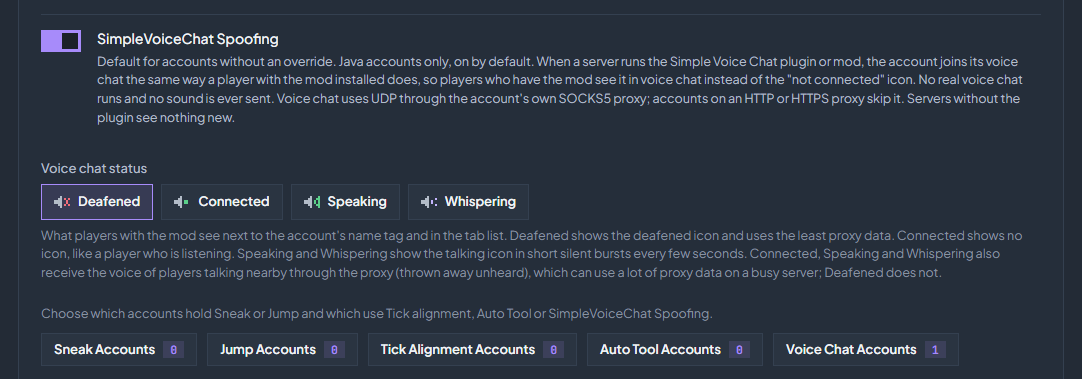
SimpleVoiceChat Spoofing, under Movement and compatibility, is on by default for every Java account. On a server that runs the Simple Voice Chat plugin or mod, the account joins voice chat the same way a player with the mod installed does, so players who have the mod see it in voice chat instead of the not connected icon. No real voice chat runs: nothing is recorded and no sound is ever sent. On a server without the plugin nothing changes.
Pick a status
Voice chat status sets what players with the mod see next to the name tag and in the tab list. Deafened, the default, shows the deafened icon. Connected shows no icon, like a player who is listening. Speaking and Whispering show the talking icon in short silent bursts every few seconds.
Pick the accounts
The switch is the default. Open Voice Chat Accounts to turn it off or on for single accounts; an account with no override follows the default. A change applies to connected accounts right away.
Use a SOCKS5 proxy
Voice chat travels over UDP and always goes through the account’s own proxy. A SOCKS5 proxy with UDP support carries it. An account on an HTTP or HTTPS proxy stays out of voice chat; voice chat never uses another address.
Other switches in the same panel
| Setting | What it does |
|---|---|
| Chat Logging | Turn it off and Console Client stops processing chat. Anything that reads chat, including the Chat tab and chat-driven alerts, stops with it. |
| Auto remove Invalid Accounts for Cookie & SSID accounts | A Cookie or SSID account marked Invalid account is stopped, then removed five seconds later. Leave it off if you want to re-import those logins yourself. |
| Disconnect all on ban | When one account is kicked with a message that contains one of your ban keywords, every account you have on that same server is disconnected and stays offline until you connect it again. Off by default; see Fix repeated kicks. |
These settings are global and apply to every account the next time it connects. Change one, reconnect a single account, and watch Chat before applying the same setup to a group.
Check the troubleshooting guide or return to all guides.