
Create your first macro
Build a short command sequence in the Macros tab, run it on one account, and learn how the builder works.
Open the builder
Open Macros → Your Macros. Macros unlock on Tier 1 with 3 or more account slots. The hotbar at the top holds your macro slots and shows how many you have used: 10 slots on Tier 1, 20 on Tier 2, and 50 on Tier 3. Click New macro to start one, or click a filled slot to open it.
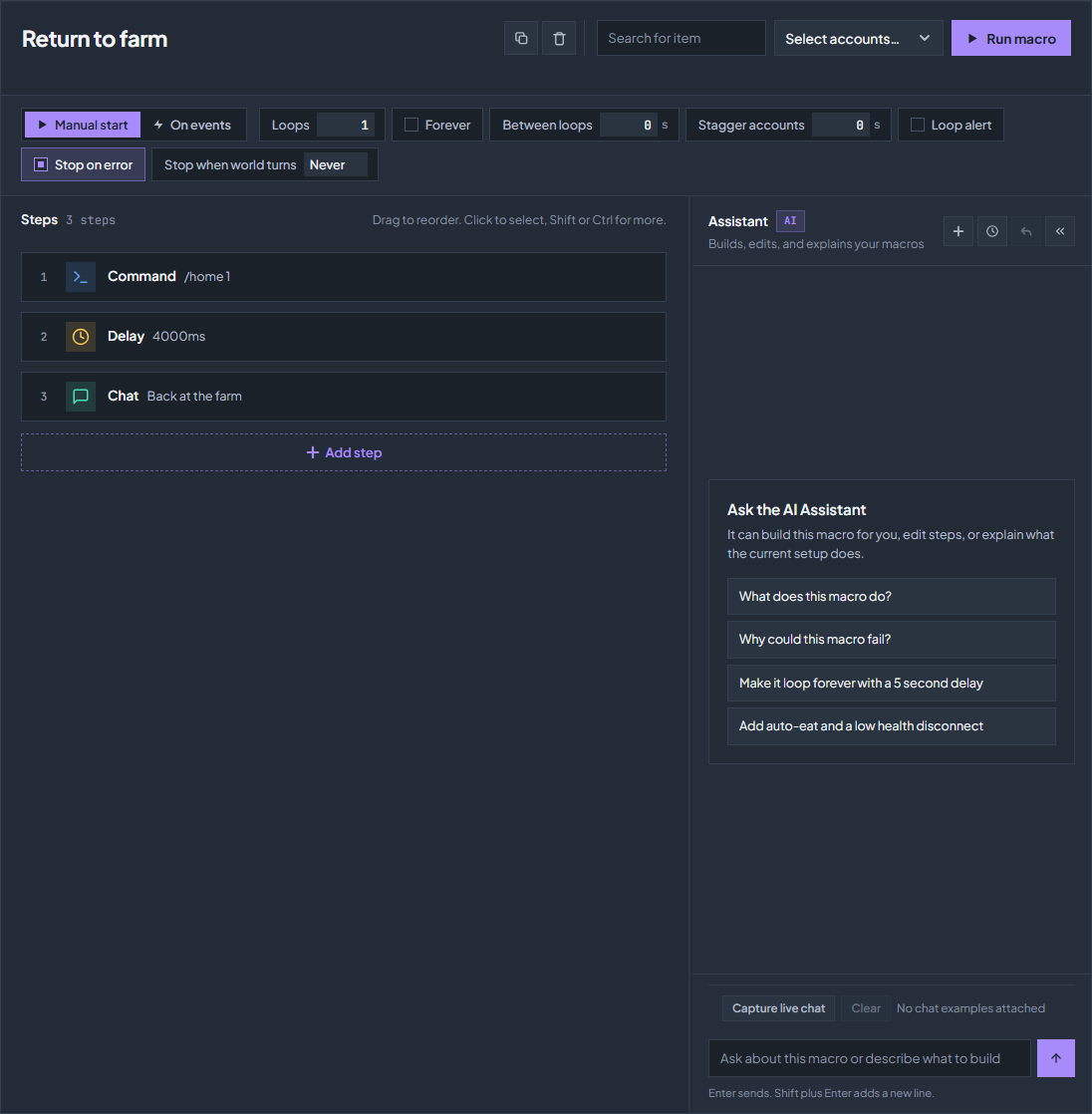
Build a short sequence
Name it
Type a name you will recognise into the title field, such as “Return to farm”. Names are up to 64 characters. Everything you change in the builder saves by itself; there is no Save button for a manual macro.
Add the first step
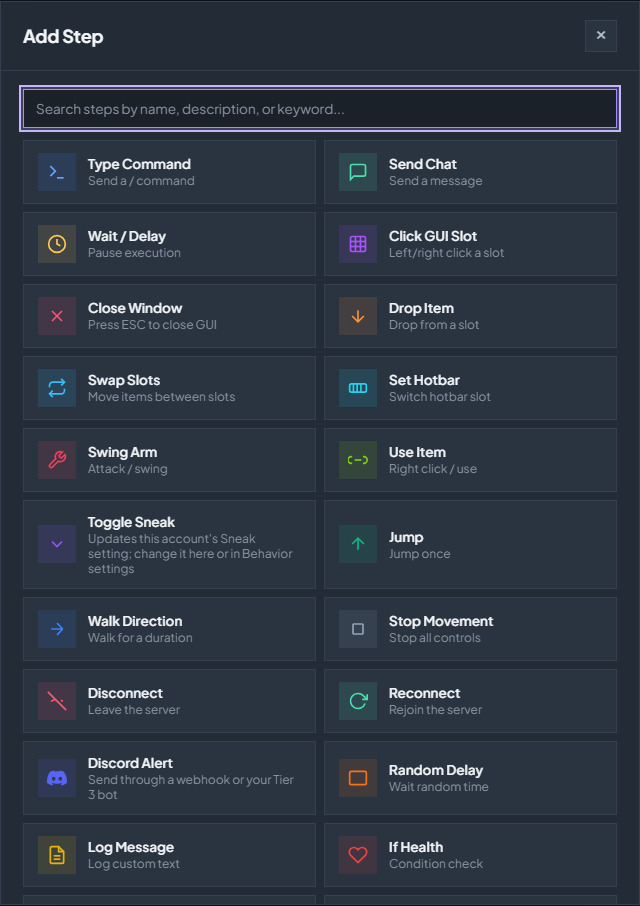
Click Add step. The picker lists every step with a short description, and the search box at the top matches names, descriptions, and keywords. Choose Type Command and enter
/home 1, or whatever brings the account where it should be.Add a wait
Add Wait / Delay and give it a few thousand milliseconds so the teleport finishes before the next step. Timing fields are always in milliseconds: 1000 is one second.
Add what comes next
Add the rest of the sequence, for example Send Chat or a second command. Each step opens a small Configure window; click a step in the list later to edit it again.
Run it on one account
Leave the run settings alone
Keep Manual start selected with Loops at 1 and Forever off. The other settings are explained in events, join and schedules.
Choose one account
Open Select accounts and tick a connected test account. Search for item next to it narrows the list to accounts carrying a particular item (it reads inventories, so it needs Tier 2), which is handy once you have many accounts.
Run
Click Run macro. The run appears under Active Macros with its loop count and a Stop button of its own; Stop Active Macros stops every run.
Check the result
Watch Chat → Chat for the commands and replies, and Chat → Console for the
[macro]lines, which say which step ran and why a step failed.
Edit the step list
Drag a step to reorder it. Click a step to select it, and hold Shift or Ctrl to select more. Click a step’s card to change its settings.
| Shortcut | What it does |
|---|---|
| Ctrl+C, Ctrl+V | Copy the selected steps and paste them into the list. |
| Ctrl+D | Duplicate the selected steps in place. |
| Ctrl+A | Select every step. |
| Delete or Backspace | Remove the selected steps. |
| Ctrl+Z, Ctrl+Y | Undo and redo step changes. |
| Escape | Clear the selection. |
The two icon buttons beside the name duplicate the whole macro as “name (copy)” or delete it. A macro can hold up to 100 steps.
Several macros at once
One account can run several macros at the same time, and each run keeps its own variables, loop count, and Stop button. Different macros run side by side. Starting a macro that is already running on that account restarts it instead of adding a second copy, so a join macro after a reconnect never stacks up.
Runs share the account’s real hands, feet, and inventory, so the most recent action wins when two runs disagree. A held Sneak or Jump stays on after the run ends until a step or the Behavior settings turn it off; see Keep accounts alive while AFK.
Where to go next
| Guide | What it covers |
|---|---|
| Chat, waits, movement and items | Commands and chat with tokens, delays, looking and moving, mining, items by name, and connection steps. |
| Inventory, menus and dialogs | Slot numbers, clicking through shop menus, moving items in bulk, and server dialogs. |
| Variables, conditions and loops | Variables, If and Switch, waiting for a condition, repeating ranges, and running macros inside macros. |
| Events, join and schedules | Event macros, the join macro, Scheduled Macros, loops, staggering, and day or night limits. |
| Chat replies and payments | The Automation step: tasks that answer chat and handle DonutSMP payments while the macro runs. |
| The AI assistant | Describe a macro in plain words, review what it built, and attach real chat messages as examples. |
| Macro Recording | Record what you do in Point of View, trim it like a video, and replay it as a step or turn it into steps. |
Open Community Macros to browse macros other customers shared. Use copies one into a free slot of yours. Read its steps before running it, replace server-specific home names and slot numbers, and test it on one account. Shared macros never carry the author’s Discord webhook URLs, so add your own where a Discord Alert step needs one.
Check the troubleshooting guide or return to all guides.