
Your first account online
Set your server, choose a proxy, and connect your first Minecraft account.
Before you start
Open the Console Client dashboard and sign up with your email address and a password, or continue with Discord. Have your Minecraft account and the server address ready. The free plan lets you keep one account AFK 24/7 with unlimited connection time and three basic macro slots. Paid plans add account slots and advanced features.
Get connected
Set your Minecraft server
Complete the first-run setup, or open Settings → Connection. Choose the correct edition, server address, port, and Minecraft version. Use the details provided by your Minecraft server. Java and Bedrock have separate connection settings.
Choose a proxy
You can purchase a proxy directly from Console Client in Proxies, or add your own SOCKS5 or HTTP proxy. Check the edition supported by the proxy.
Add your account
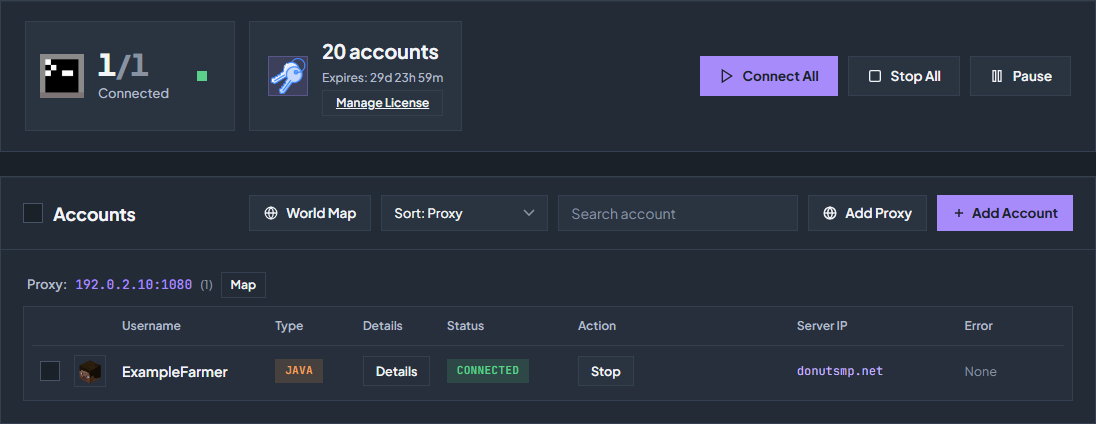
Go to Overview → Add Account, select Java or Bedrock, and follow the Java or Bedrock sign-in guide. Select a proxy in the account form.
Connect and check
Use the account’s Connect button in Overview. Complete any Microsoft authentication prompt. Wait for connected, then open Chat to check the server’s messages.
Make the account stay useful
Set a join command to return to your AFK location after a reconnect, and review Auto Reconnect. Once your first account is working, repeat the setup or use an import method for more accounts.
Check the troubleshooting guide or return to all guides.